In this article you will learn how to Add, Edit, Import and Manage your Contacts within the RForm software. Once Contacts have been entered into RForm, they then can be added to a Project Team and can be given permissions and roles for any project in the future.
Account Managers have the permissions to add new contacts and their credentials.
Add Contact
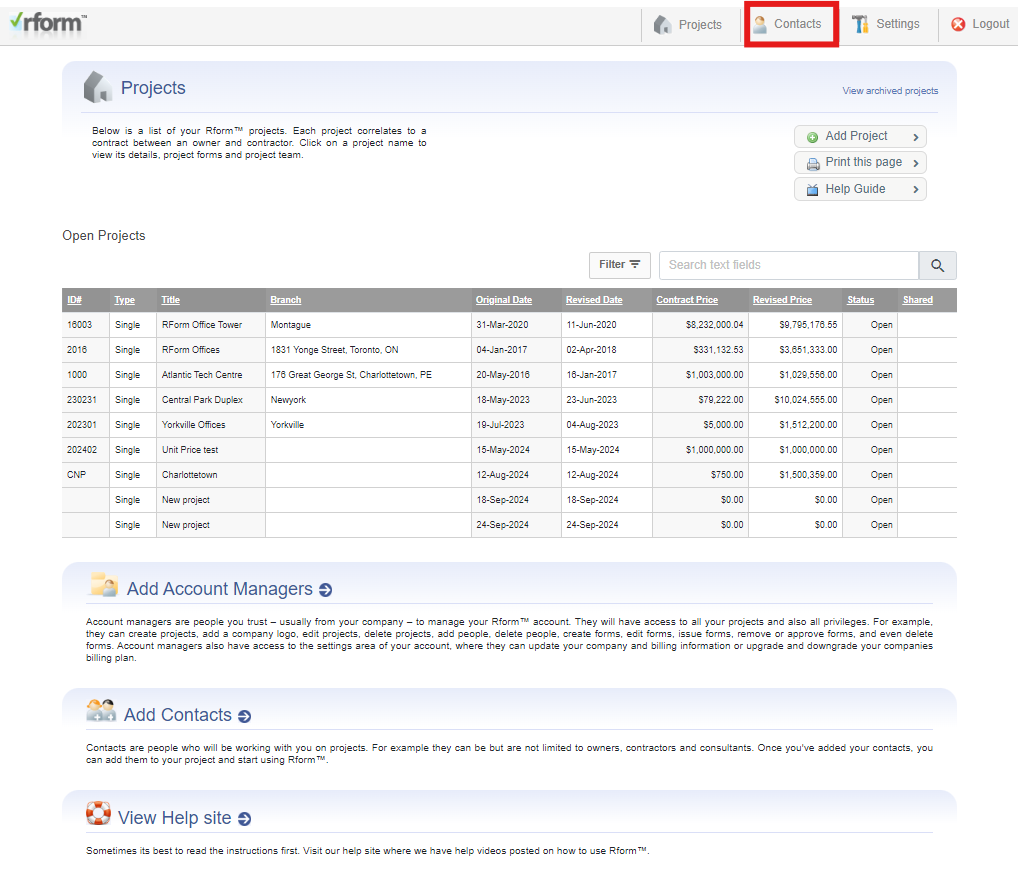
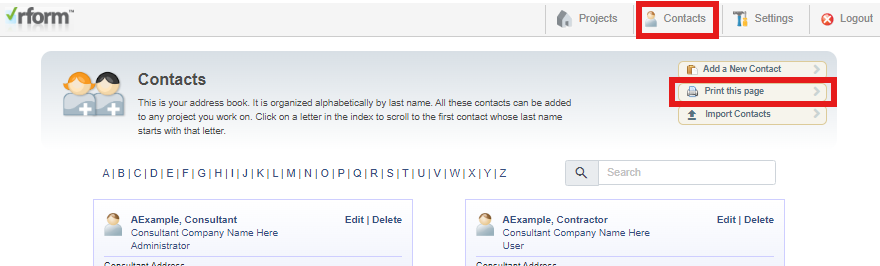
- To view your Contacts page and Add a Contact go to your main RForm dashboard page and click Contacts tab top right of the page.
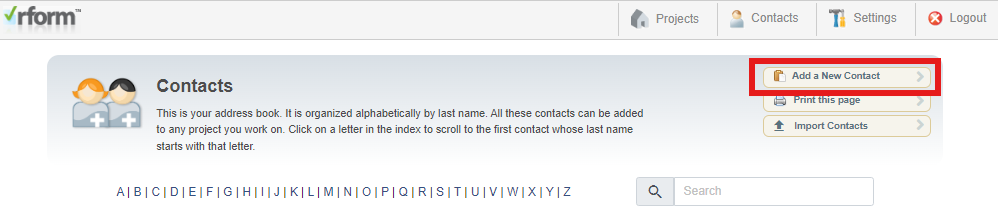
- Click the Add a New Contact button top right of the page.
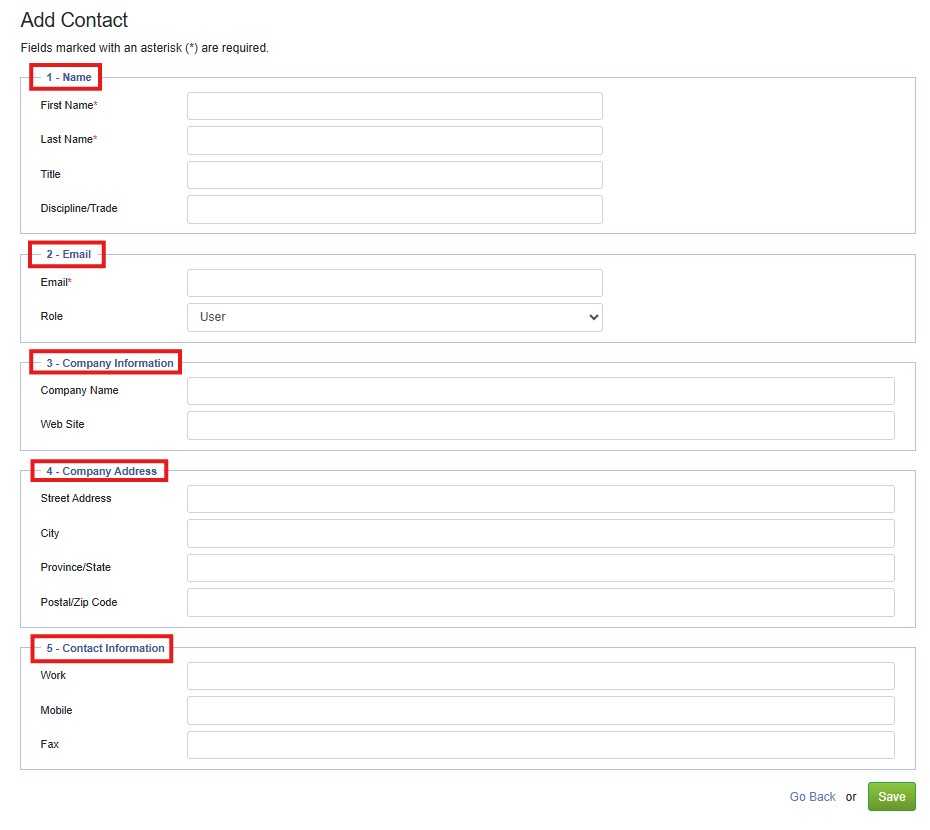
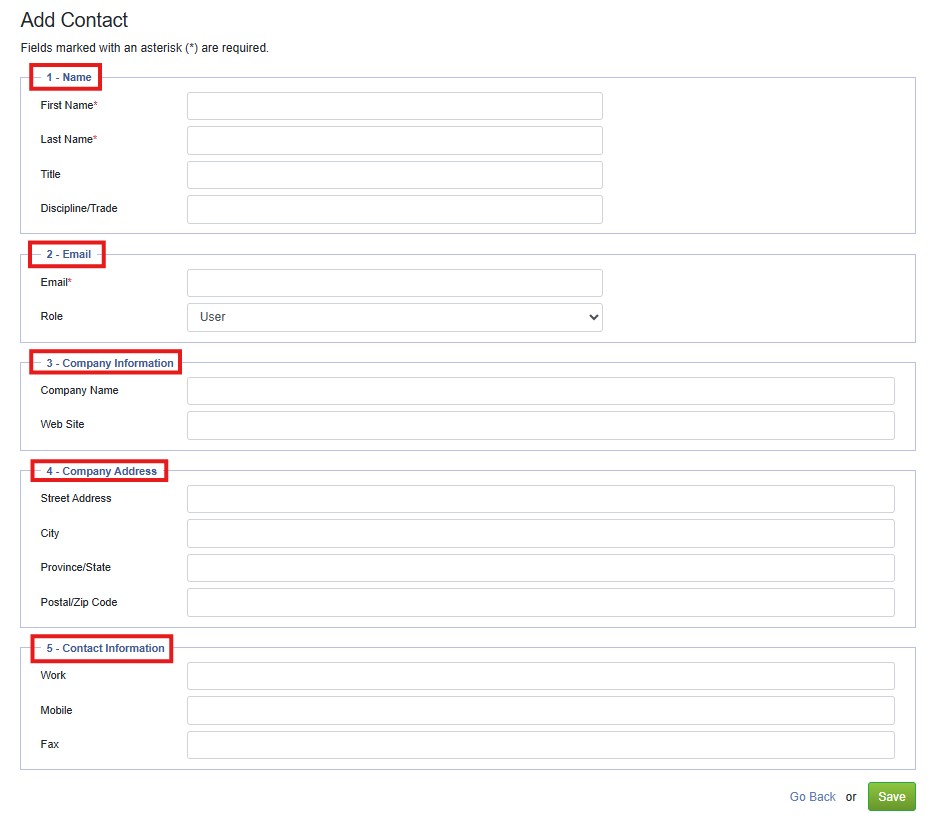
- Fill out the Contact details and click the Save button at the bottom.
Sections/Fields | Instructions |
Name (Required) | First, Last, Discipline/Trade |
Email Address (Required) | Email Address/(Username) - Used by the contact to sign into your RForm account. - Specify the role you want the Contact to have. |
Company Information (Optional) | Name - Website |
Company Address (Optional) | Address-City-Province-Postal Code |
Contact Information | Work - Mobile Phone numbers Fax |
- Another way to Add a contact is via your RForm Dashboard page, by clicking on the Add Contacts button.
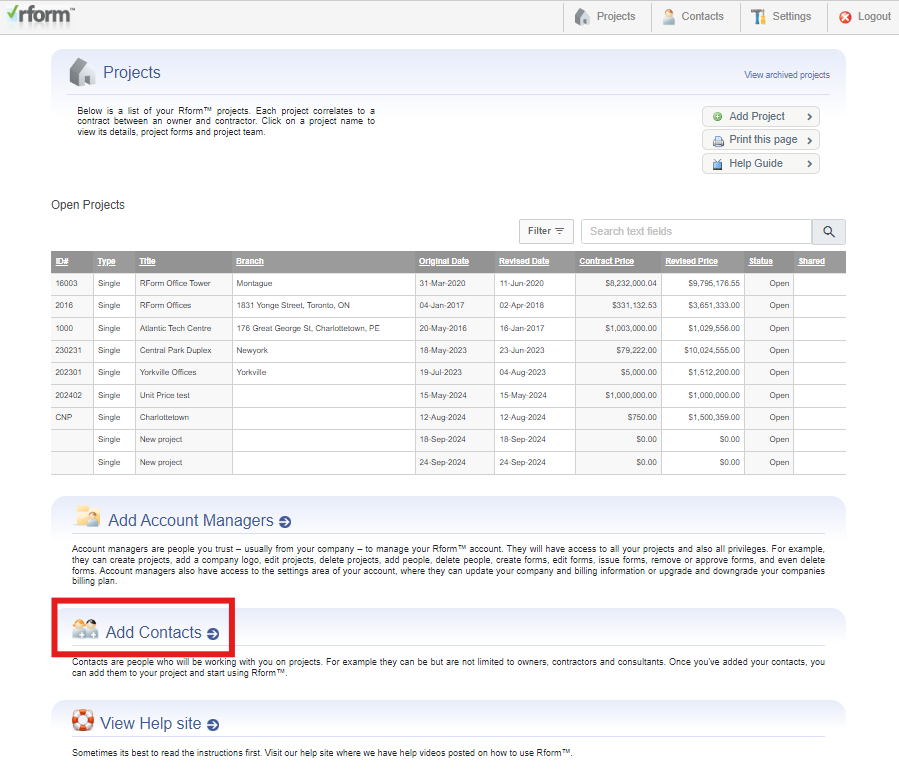
- The Add Contact form will open, similar to the function of the Add New Contact on the main Contacts page.
Import Contacts
If you have your contacts in a .CSV file they can be imported into RForm. Most mail programs like Outlook and Gmail have options to export contacts in a CSV format.
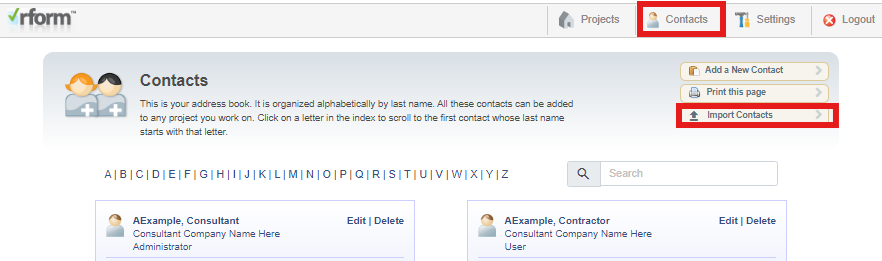
- Click on the Contacts tab and then click on the Import Contacts button.
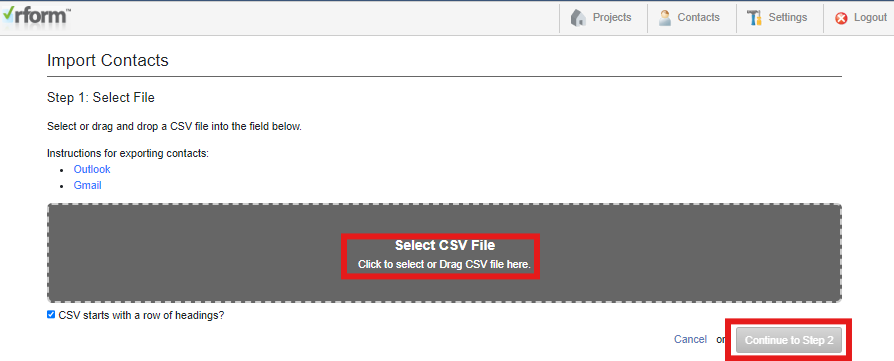
- Click the gray area to Browse your computer files or Drag or drop a CSV file into the gray area, then click the Continue to Step 2 button.
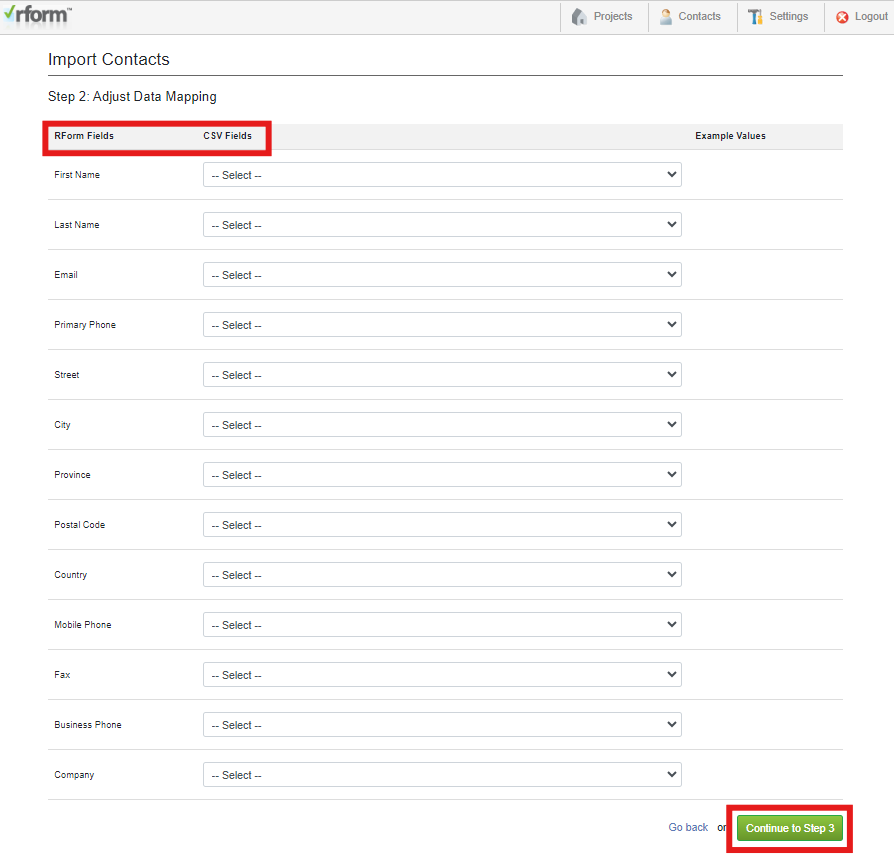
- On Step 2 review the RForm fields and the CSV fields to ensure that the proper information is lined up with the respective RForm field. Once complete click the Continue to Step 3 button.
- On Step 3 choose the contacts you want to import from the CSV file.
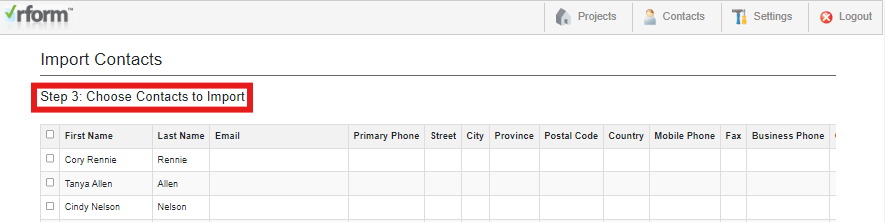
- Click the Import Selected Contacts to complete the process of importing.

Find a Contact
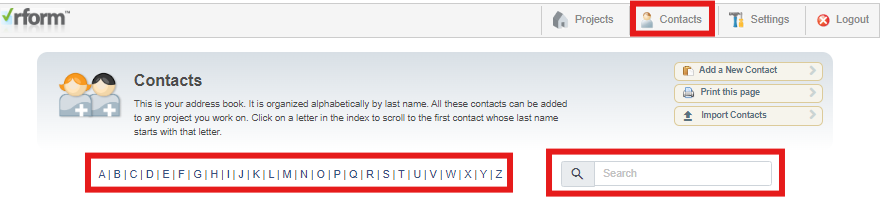
- To Find and Edit a Contact click on the Contacts tab top right, then click on the alphabet displayed for the user’s last name or use the Search field to conduct a search of the last name.
Edit a Contact
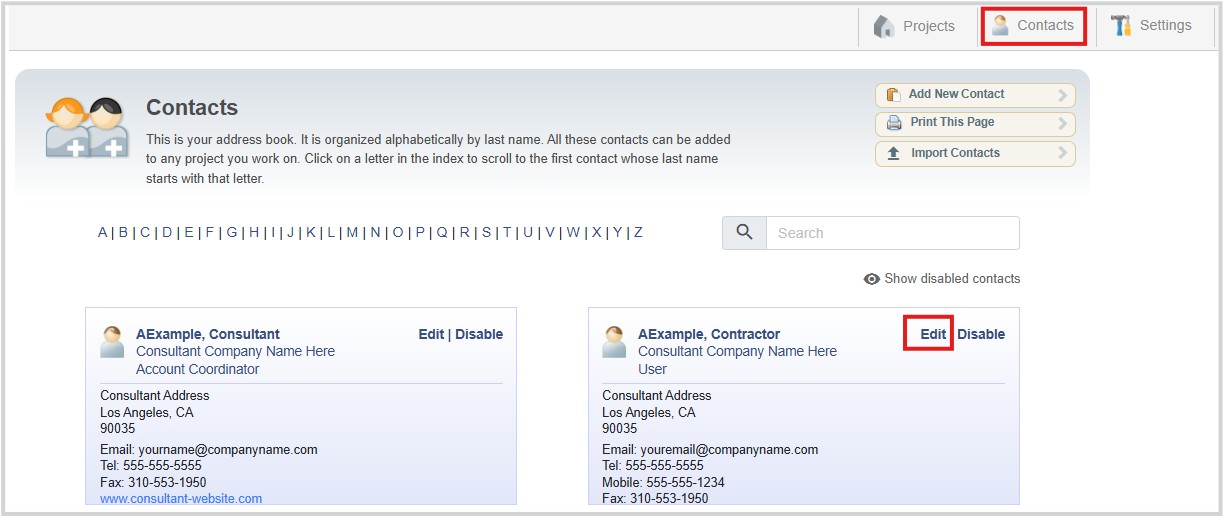
- To edit a contact navigate to the Contacts page, find the contact in the list using the Find options. Click the Edit link, make your edits, then Save your changes.
Disable a Contact
Disabling a contact will remove their access to your RForm account completely.
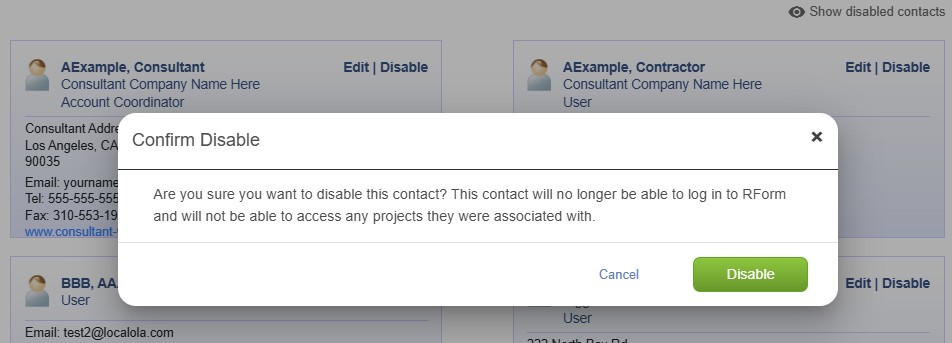
- To Disable a contact navigate to the contacts page, find the contact in the list using the Find options. Click the Disable link.
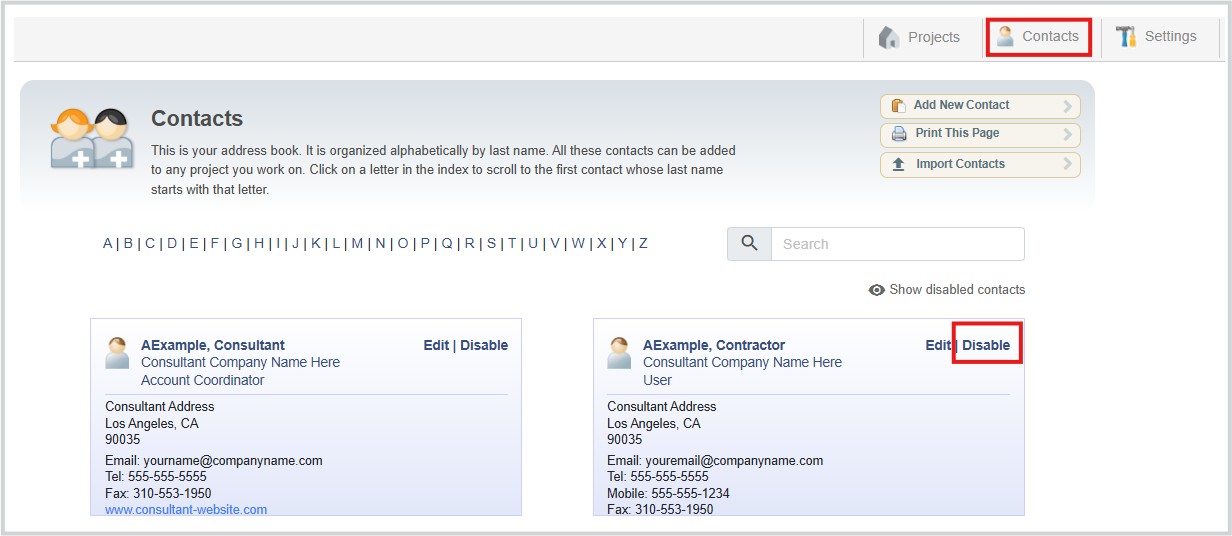
- Confirm the disable by clicking the Disable button.
Print Contacts
If you would like to print out your list of contacts in RForm.
- Navigate to the Contacts page, and click the Print This Page button then follow your computer’s instructions for activating your printer.
Remove Contact From a Project
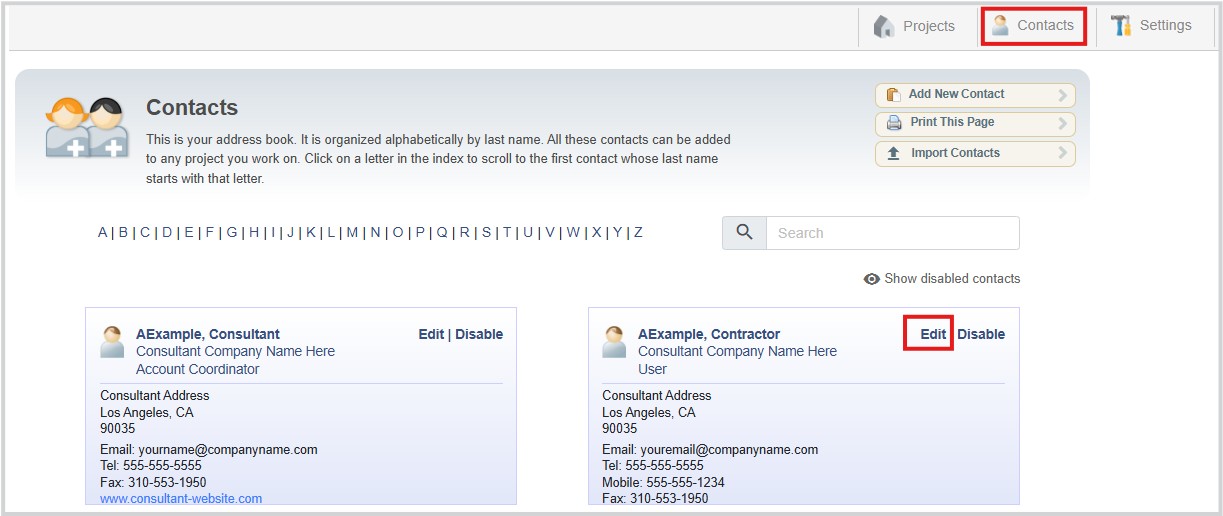
To remove a contact from one or more project teams, click Edit for the contact you want to remove from a project(s)
- To remove a contact from projects first, click the Edit the contact
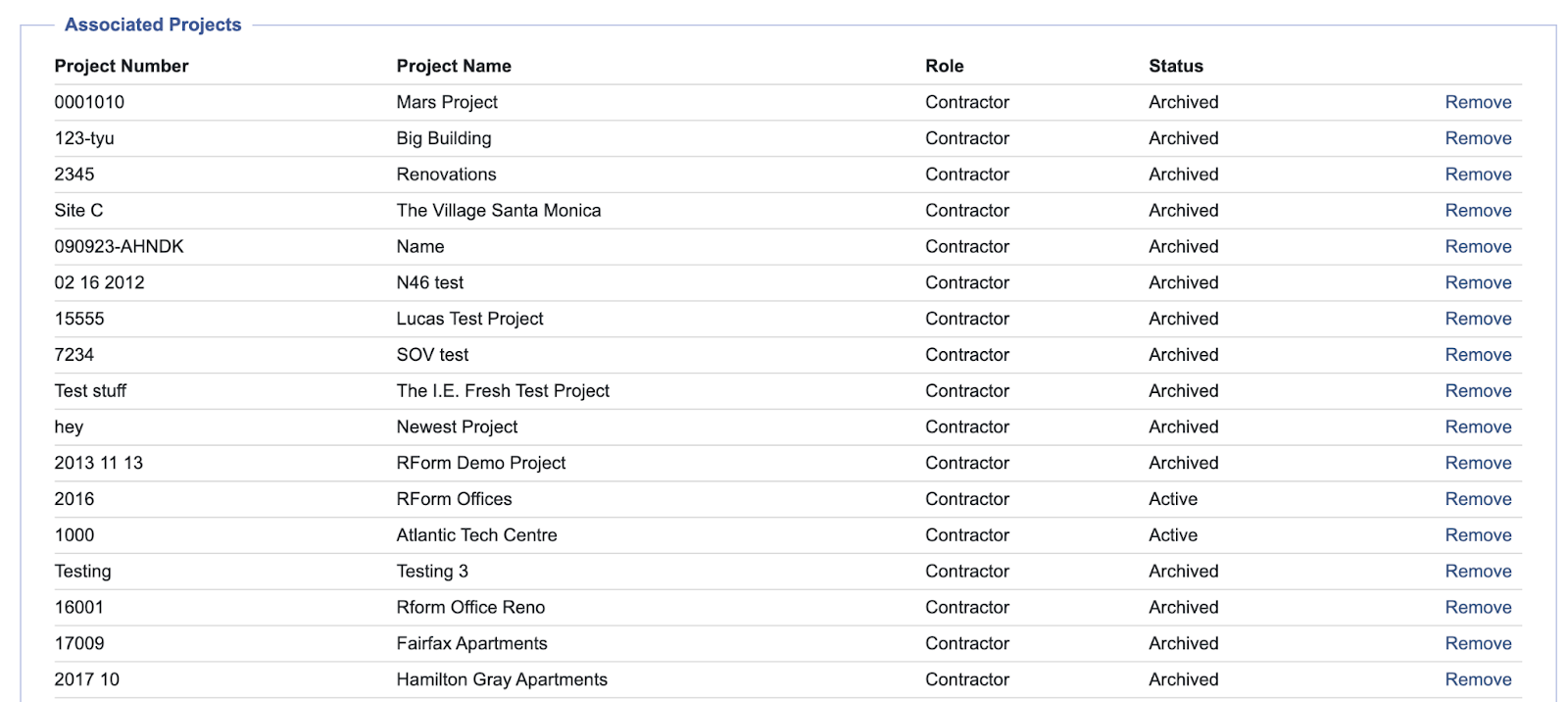
- Scroll to the end of the contact page. A list of all projects the contact is currently associated with is listed. Click the Remove text link on the right to remove.
Was this article helpful?
That’s Great!
Thank you for your feedback
Sorry! We couldn't be helpful
Thank you for your feedback
Feedback sent
We appreciate your effort and will try to fix the article