In this article, you will learn how to archive projects. Archiving projects removes them from the Open Projects dashboard and places them on the Archived Dashboard as a read-only project. Once a project is removed from the Open Projects dashboard, the subscription count is reduced by 1 project and it is no longer charged to your account.
Only Account Managers can archive and view archived projects. These projects will not be visible to other user types and only be in View-Only Mode for account managers.
Archive a Project
You should only archive a project if it is completed and you are certain you no longer need to create, edit, issue, approve, or certify forms within this project.
To archive a project, follow the instructions below:
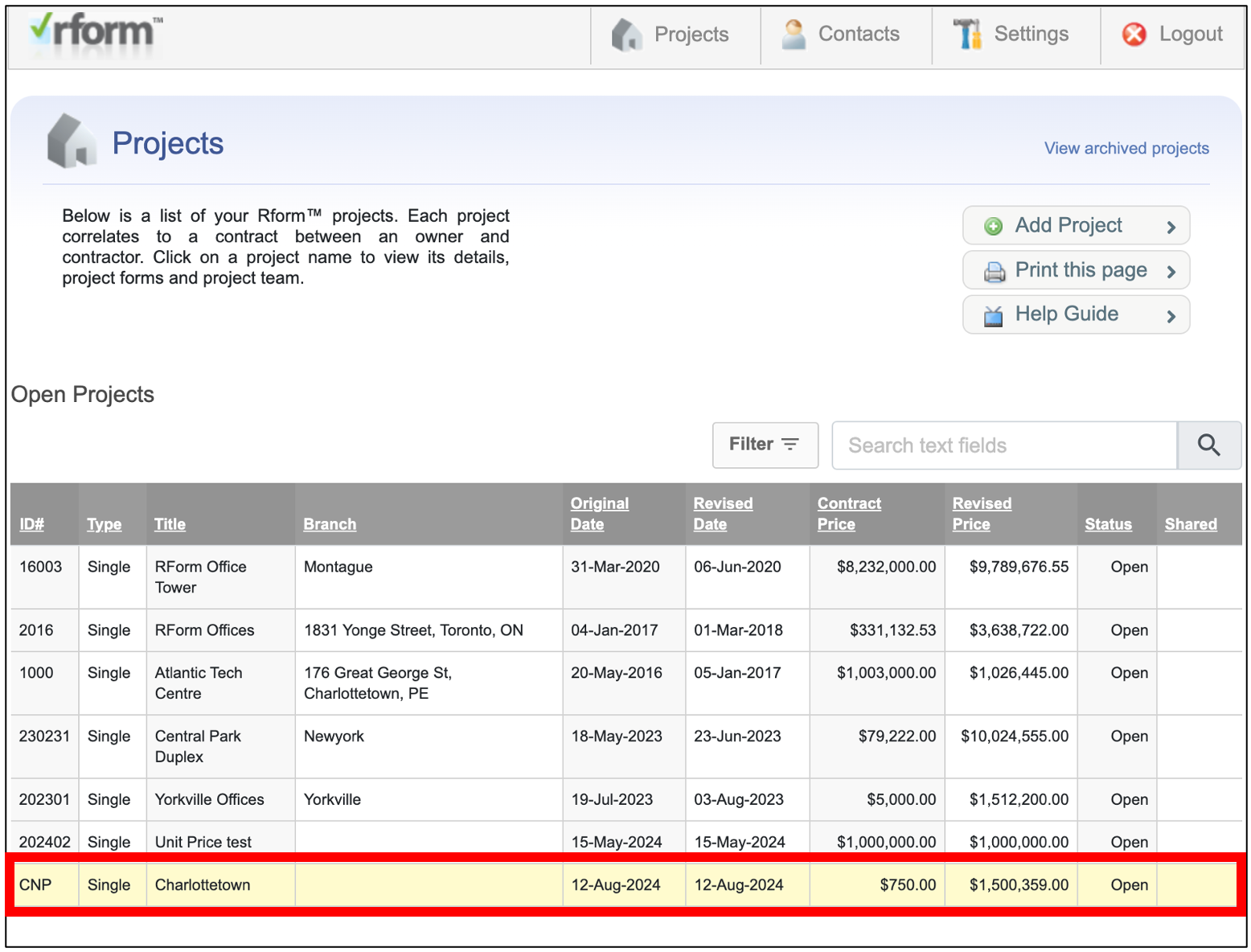
- Open the Project that you would like to archive.
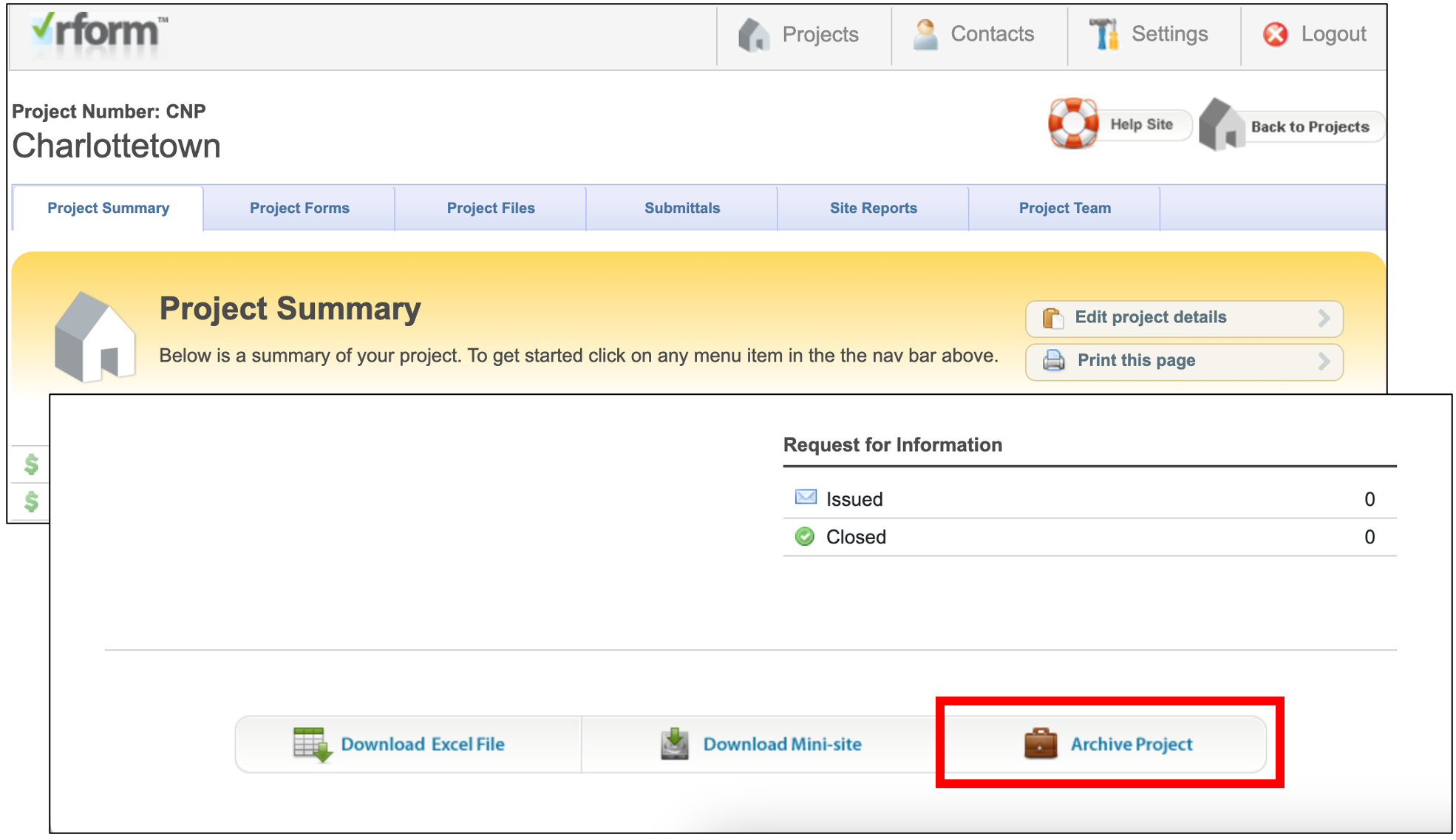
- On the Project Summary page, scroll to the bottom and click the Archive Project button.
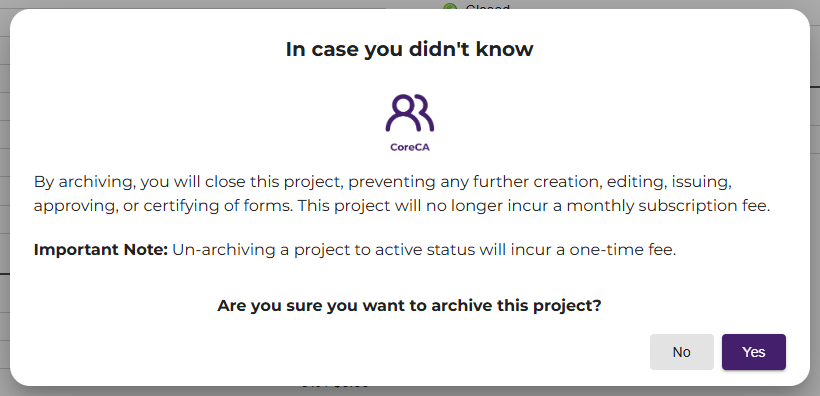
A Confirmation dialog box will appear. Click the Archive project button to continue archiving the project.
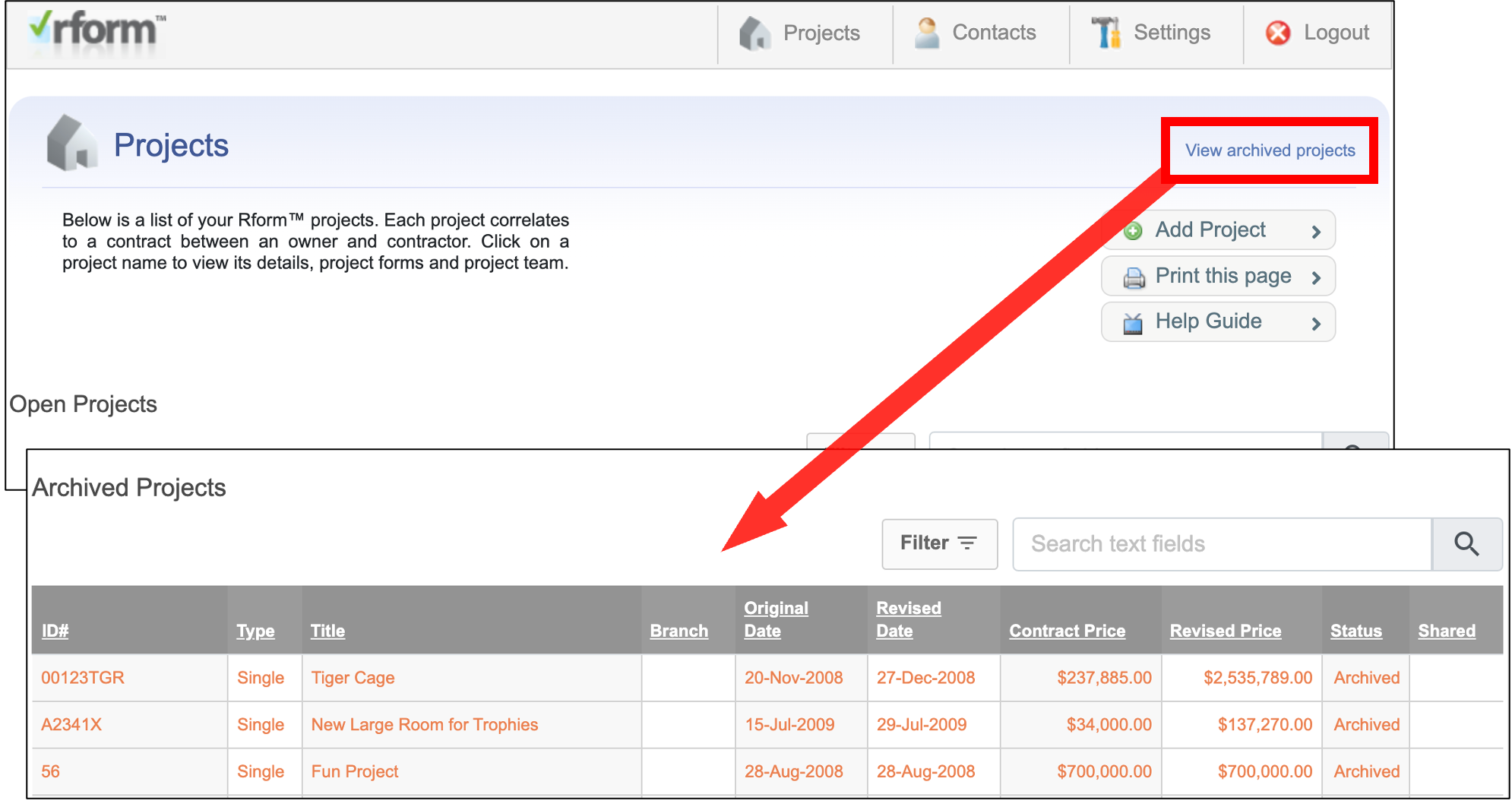
- To view archived projects, find and click the View archived projects link on the Project page


Unarchive a Project
- Navigate to your archived projects from your Dashboard list of projects.
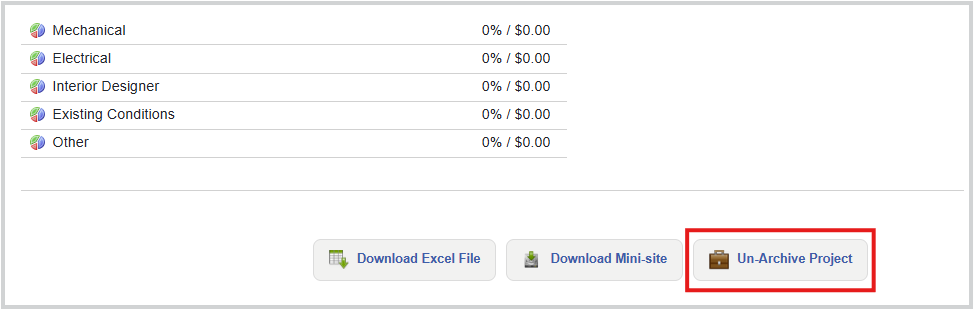
- Select your Project and scroll down to the bottom of the Project Summary page and click Un-Archive Project.
- Click Yes if you want to make your project active again and unarchive the project.
Please note that unarchiving the project will activate the project and you will initialize the monthly payments for the project of $39.95 immediately thereafter.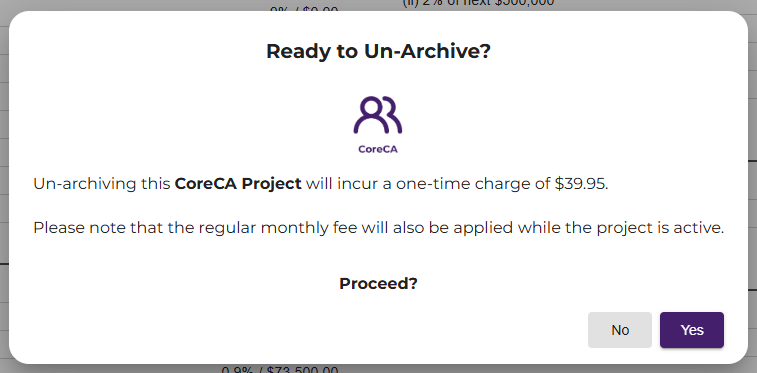
Was this article helpful?
That’s Great!
Thank you for your feedback
Sorry! We couldn't be helpful
Thank you for your feedback
Feedback sent
We appreciate your effort and will try to fix the article